


A Model Context Protocol server that provides time-related capabilities. This server enables LLMs to access current time information and convert times between different timezones. This is a Swift implementation of a time MCP server using the MCP Swift SDK.


- Current Time Queries: Get the current time in any timezone
- Time Zone Conversions: Convert time between different timezones
- Daylight Saving Time Information: Check if a timezone is currently in DST
- Time Difference Calculation: Get the time difference between timezones when converting
-
get_current_time- Get the current time in a specific timezonetimezone(string, required): IANA timezone name (e.g., 'America/New_York', 'Europe/London'). If empty or not provided, the system timezone will be used.
-
convert_time- Convert time between timezonessource_timezone(string, required): Source IANA timezone name. If empty or not provided, the system timezone will be used.time(string, required): Time to convert in 24-hour format (HH:MM)target_timezone(string, required): Target IANA timezone name. If empty or not provided, the system timezone will be used.
Download the latest pre-built binary for your platform from the GitHub Releases page:
Download the binary for your platform from the GitHub Releases page and follow the installation instructions below.
macOS Installation
# Download the arm64 version
curl -L https://github.com/okooo5km/time-mcp-server/releases/latest/download/time-mcp-server-macos-arm64.zip -o time-mcp-server.zip
unzip time-mcp-server.zip
chmod +x time-mcp-server

# Remove quarantine attribute to avoid security warnings
xattr -d com.apple.quarantine time-mcp-server

# Install to your local bin directory
mkdir -p ~/.local/bin
mv time-mcp-server ~/.local/bin/
rm time-mcp-server.zip# Download the x86_64 version
curl -L https://github.com/okooo5km/time-mcp-server/releases/latest/download/time-mcp-server-macos-x86_64.zip -o time-mcp-server.zip
unzip time-mcp-server.zip
chmod +x time-mcp-server
# Remove quarantine attribute to avoid security warnings
xattr -d com.apple.quarantine time-mcp-server
# Install to your local bin directory
mkdir -p ~/.local/bin
mv time-mcp-server ~/.local/bin/
rm time-mcp-server.zip# Download the universal version
curl -L https://github.com/okooo5km/time-mcp-server/releases/latest/download/time-mcp-server-macos-universal.zip -o time-mcp-server.zip
unzip time-mcp-server.zip
chmod +x time-mcp-server
# Remove quarantine attribute to avoid security warnings
xattr -d com.apple.quarantine time-mcp-server
# Install to your local bin directory
mkdir -p ~/.local/bin
mv time-mcp-server ~/.local/bin/
rm time-mcp-server.zipLinux Installation
# Download the amd64 version
curl -L https://github.com/okooo5km/time-mcp-server/releases/latest/download/time-mcp-server-linux-amd64.tar.gz -o time-mcp-server.tar.gz
tar -xzf time-mcp-server.tar.gz
chmod +x time-mcp-server

# Install to your local bin directory
mkdir -p ~/.local/bin
mv time-mcp-server ~/.local/bin/
rm time-mcp-server.tar.gz# Download the arm64 version
curl -L https://github.com/okooo5km/time-mcp-server/releases/latest/download/time-mcp-server-linux-arm64.tar.gz -o time-mcp-server.tar.gz
tar -xzf time-mcp-server.tar.gz
chmod +x time-mcp-server
# Install to your local bin directory
mkdir -p ~/.local/bin
mv time-mcp-server ~/.local/bin/
rm time-mcp-server.tar.gzWindows Installation
- Download the Windows AMD64 version
- Extract the ZIP file
- Move the
time-mcp-server.exeto a location in your PATH
- Download the Windows ARM64 version
- Extract the ZIP file
- Move the
time-mcp-server.exeto a location in your PATH
Make sure the installation directory is in your PATH:
- macOS/Linux: Add
export PATH="$HOME/.local/bin:$PATH"to your shell configuration file (.bashrc,.zshrc, etc.) - Windows: Add the directory to your system PATH through the System Properties > Environment Variables dialog
-
Clone the repository:
git clone https://github.com/okooo5km/time-mcp-server.git cd time-mcp-server -
Build the project:
Using Make (recommended):
# Build for your current platform
make

# Or build for a specific platform
make build-darwin-universal    # macOS Universal Binary
make build-darwin-arm64        # macOS Apple Silicon
make build-darwin-amd64        # macOS Intel
make build-linux-amd64         # Linux x86_64
make build-linux-arm64         # Linux ARM64
make build-windows-amd64       # Windows x86_64

# Or build for all platforms at once
make build-all

# Create distribution packages for all platforms
make dist
The binaries will be placed in the
.builddirectory.Using Swift directly:
swift build -c release
-
Install the binary:
# Install to user directory (recommended, no sudo required)
mkdir -p ~/.local/bin
cp time-mcp-server ~/.local/bin/
Make sure
~/.local/binis in your PATH by adding to your shell configuration file:echo 'export PATH="$HOME/.local/bin:$PATH"' >> ~/.zshrc # or ~/.bashrc source ~/.zshrc # or source ~/.bashrc
The server supports the following command line arguments:
-h, --help: Display help information about the server, its usage, and available options-v, --version: Display the version number of the time-mcp-server-t, --transport <string>: Transport type to use (default: "stdio")stdio: Standard input/output mode for direct integration with LLMssse: Server-Sent Events mode for web-based connections
-p, --port <int>: Port to use when running in SSE mode (default: 8080)-l, --local-timezone <string>: Override the automatically detected local timezone with a specific IANA timezone name
Example usage:
# Display help information
time-mcp-server --help

# Display version information
time-mcp-server --version

# Start server with default settings (stdio mode)
time-mcp-server

# Start server in SSE mode on the default port (8080)
time-mcp-server --transport sse

# Start server in SSE mode on a custom port
time-mcp-server --transport sse --port 9090

# Start server with a specific local timezone
time-mcp-server --local-timezone Europe/London
When running in SSE mode, the server will be accessible via HTTP on the specified port, allowing web-based clients to connect. In stdio mode (default), the server communicates through standard input/output, which is ideal for direct integration with LLM applications.
Add to your Claude settings:
"mcpServers": {
  "RealTime": {
    "command": "time-mcp-server",
    "args": ["-l", "Asia/Shanghai"]
  }
}Add the following configuration to your Cursor editor's Settings - mcp.json:
{
  "mcpServers": {
    "RealTime": {
      "command": "time-mcp-server",
      "args": ["-l", "Asia/Shanghai"]
    }
  }
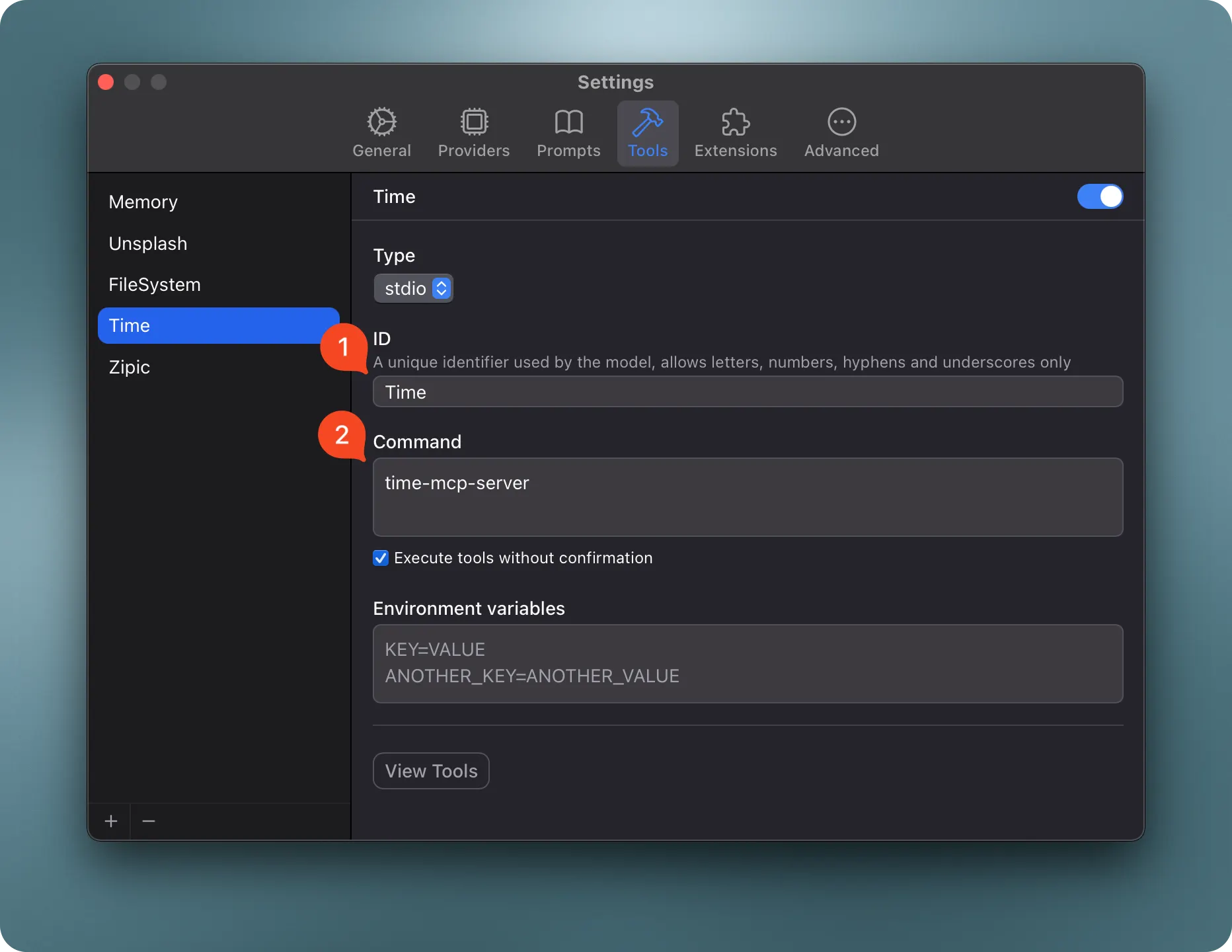
}Add the memory MCP server to your Chatwise Settings - Tools.
You can use the following system prompt to help Claude utilize the time-mcp-server effectively:
You have access to time-related tools through MCP. Use these to help users:

- Get the current time in any timezone
- Convert times between timezones
- Calculate time differences between locations
- Plan meetings across different timezones

Use the following tools appropriately:
- `get_current_time` for checking the current time in a specific timezone
- `convert_time` when the user needs to convert between timezones

Always use proper IANA timezone names (e.g., 'America/New_York', 'Europe/London', 'Asia/Tokyo')
rather than abbreviations or common names.
- Swift 6.0 or later
- macOS 14.0 or later
- MCP Swift SDK 0.2.0 or later
{
  "timezone": "America/New_York"
}
Response:
{
  "timezone": "America/New_York",
  "datetime": "2024-11-05T14:30:45-05:00",
  "is_dst": false
}{
"source_timezone": "America/Los_Angeles",
"time": "15:30",
"target_timezone": "Asia/Tokyo"
}Response:
{
  "source": {
    "timezone": "America/Los_Angeles",
    "datetime": "2024-11-05T15:30:00-08:00",
    "is_dst": false
  },
  "target": {
    "timezone": "Asia/Tokyo",
    "datetime": "2024-11-06T08:30:00+09:00",
    "is_dst": false
  },
  "time_difference": "+17h"
}- International Meeting Planning: Schedule meetings across different timezones
- Travel Planning: Check local times at destination
- Remote Work Coordination: Coordinate work hours with international teams
- Event Scheduling: Set up global events with correct local times
- Time-Sensitive Operations: Ensure operations happen at the correct local time
See GitHub Releases for version history and changelog.
If you find time-mcp-server helpful, please consider supporting its development:
- ⭐️ Star the project on GitHub
- 🐛 Report bugs or suggest features
- 💝 Support via:

time-mcp-server is licensed under the MIT License. This means you are free to use, modify, and distribute the software, subject to the terms and conditions of the MIT License.
A Swift implementation of a time server for Model Context Protocol (MCP), enabling AI assistants to access current time information and convert between timezones. This project is built using the MCP Swift SDK.